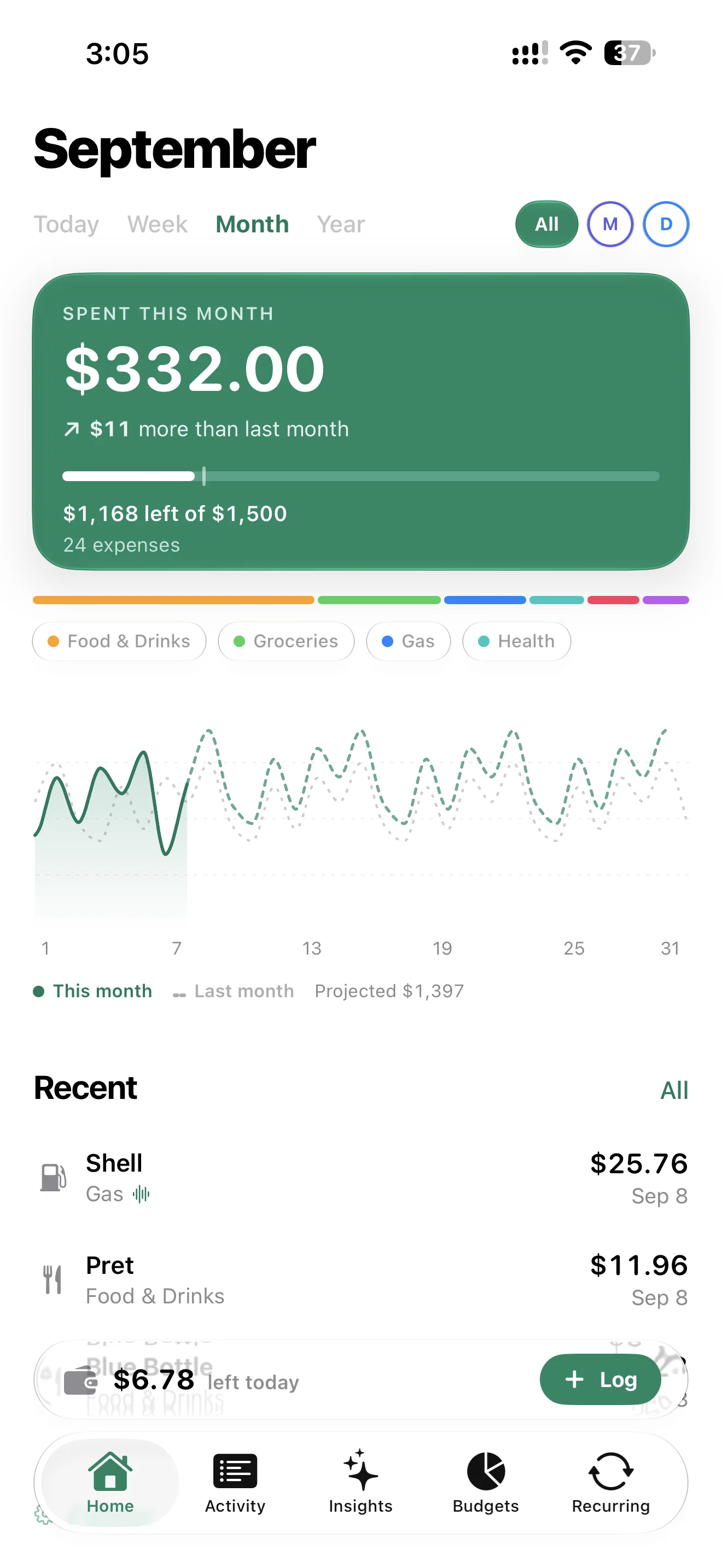
An expense tracker for the way your day actually works. Log with Siri, scan a receipt or enter an amount. Spending brings your expenses, budgets and household into one clear picture — on every Apple device you use. With on-device AI powered by Apple Intelligence.
Actual app screenshots · interface shown in English
◉Your money, at a glance
⌁On-device AI · Apple Intelligence
↻Private iCloud sync
APPLE INTELLIGENCE · ON-DEVICE AI
Smart with your receipts. Private with your data.
Spending uses AI on your device to help turn receipt images into structured expenses and your spending history into a readable weekly recap. The analysis happens locally, without sending your financial data to our servers.
On supported devices, Apple models help identify the merchant, total, date and category, including multiple payments in a screenshot.
Make sense of the week
An on-device weekly recap puts patterns into words. You can ask Spending to generate it again when you want a fresh summary.
You keep the final say
Review and correct recognized values before saving. Without Apple Intelligence, receipt scanning falls back to built-in text recognition.
Apple Intelligence features require compatible hardware and supported system languages. Core expense tracking works without them.
SPENDING, SIMPLY.
From the first coffee to the whole month.
Capture the small things while they happen. Then open Spending for the bigger picture: what you spent, what changed and how much room is left in your budget.
↗Actual app screenshots · interface shown in English
01 / CAPTURE
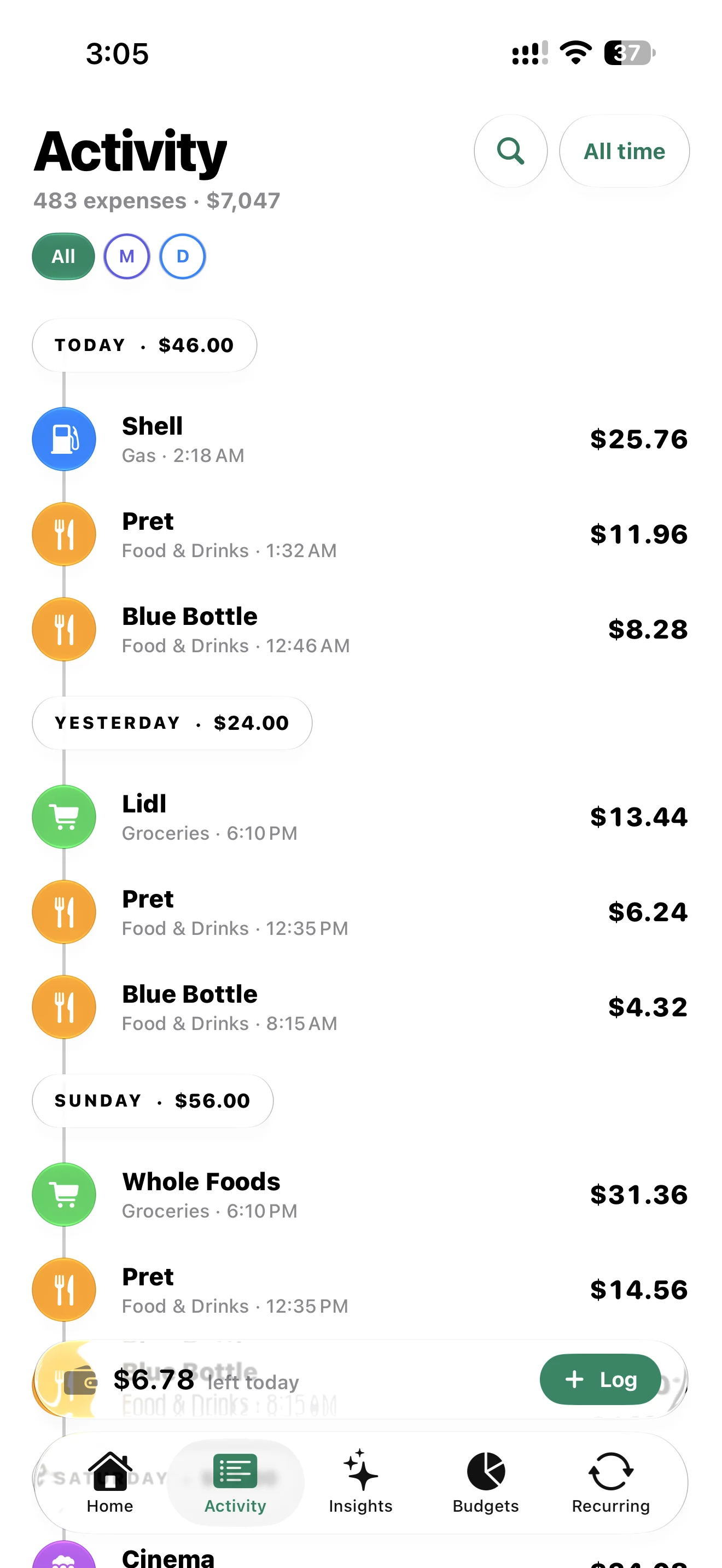
An expense logged before you forget it.
You should not have to sit down at the end of the day to remember every purchase. Tell Siri what you spent, use the quick-entry keypad or send a receipt to Spending from another app. The amount, merchant, date and category stay together in your ledger.
✓Scan a receipt or import a screenshot with several payments; review suggestions before saving.
✓Log and ask about spending with Siri and Shortcuts. Use widgets and quick controls on supported devices.
✓Recognition runs on-device. Built-in text recognition works when Apple Intelligence is unavailable.
↗Actual app screenshots · interface shown in English
02 / UNDERSTAND
More than a total at the top of a screen.
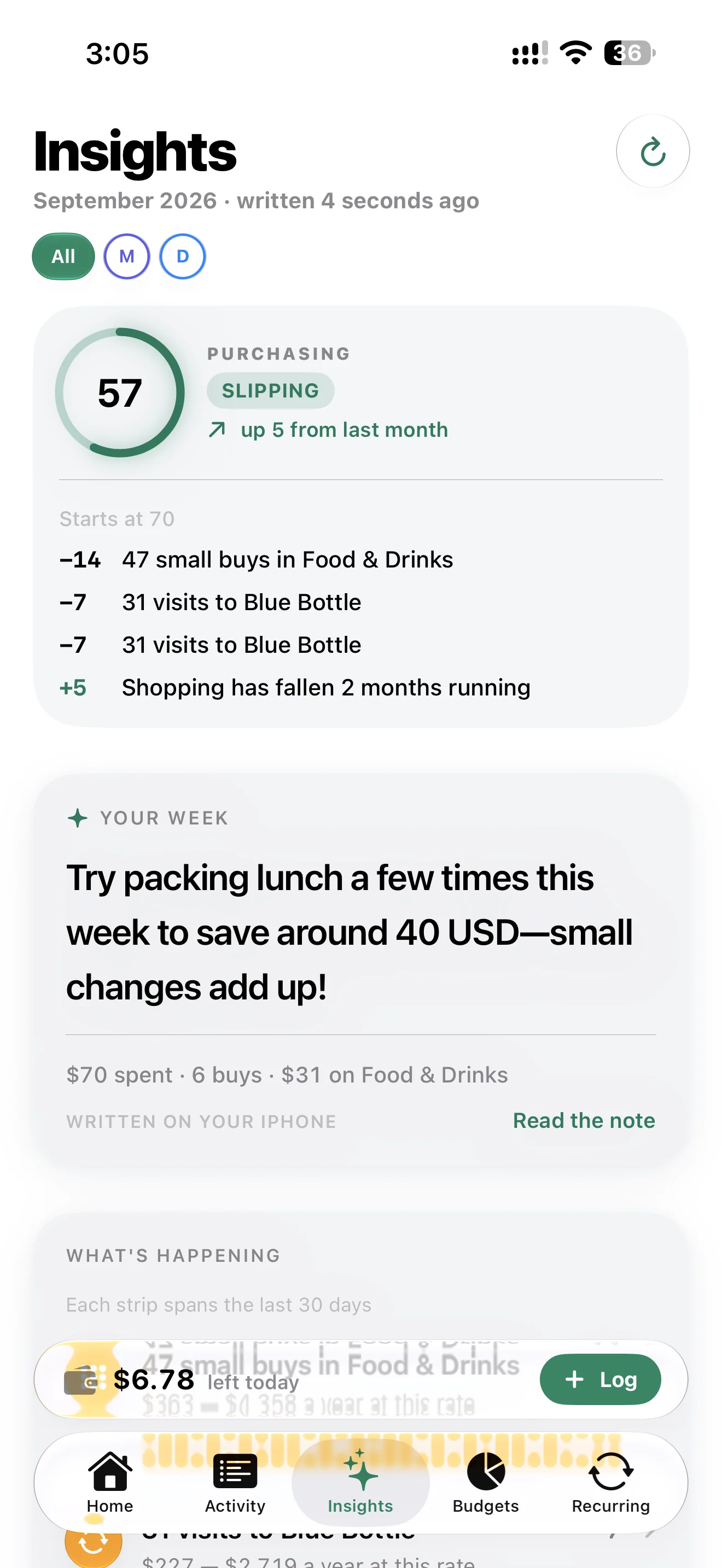
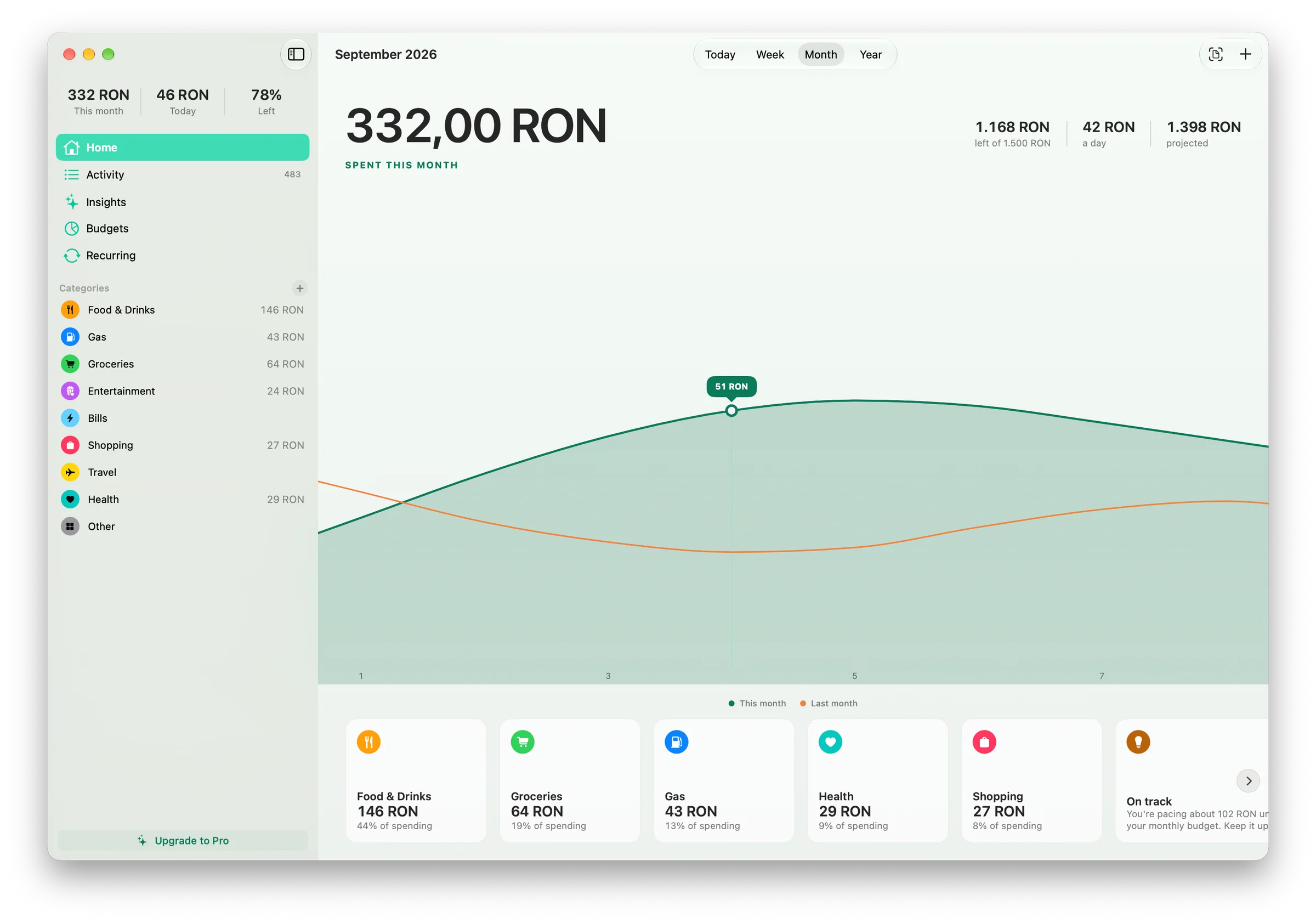
A quieter month and an expensive weekend can look the same in a bank balance. Spending shows the pattern: your daily spending compared with last month, the categories taking the largest share and the days that made the difference.
✓Compare the daily curve with last month and explore category trends over six months.
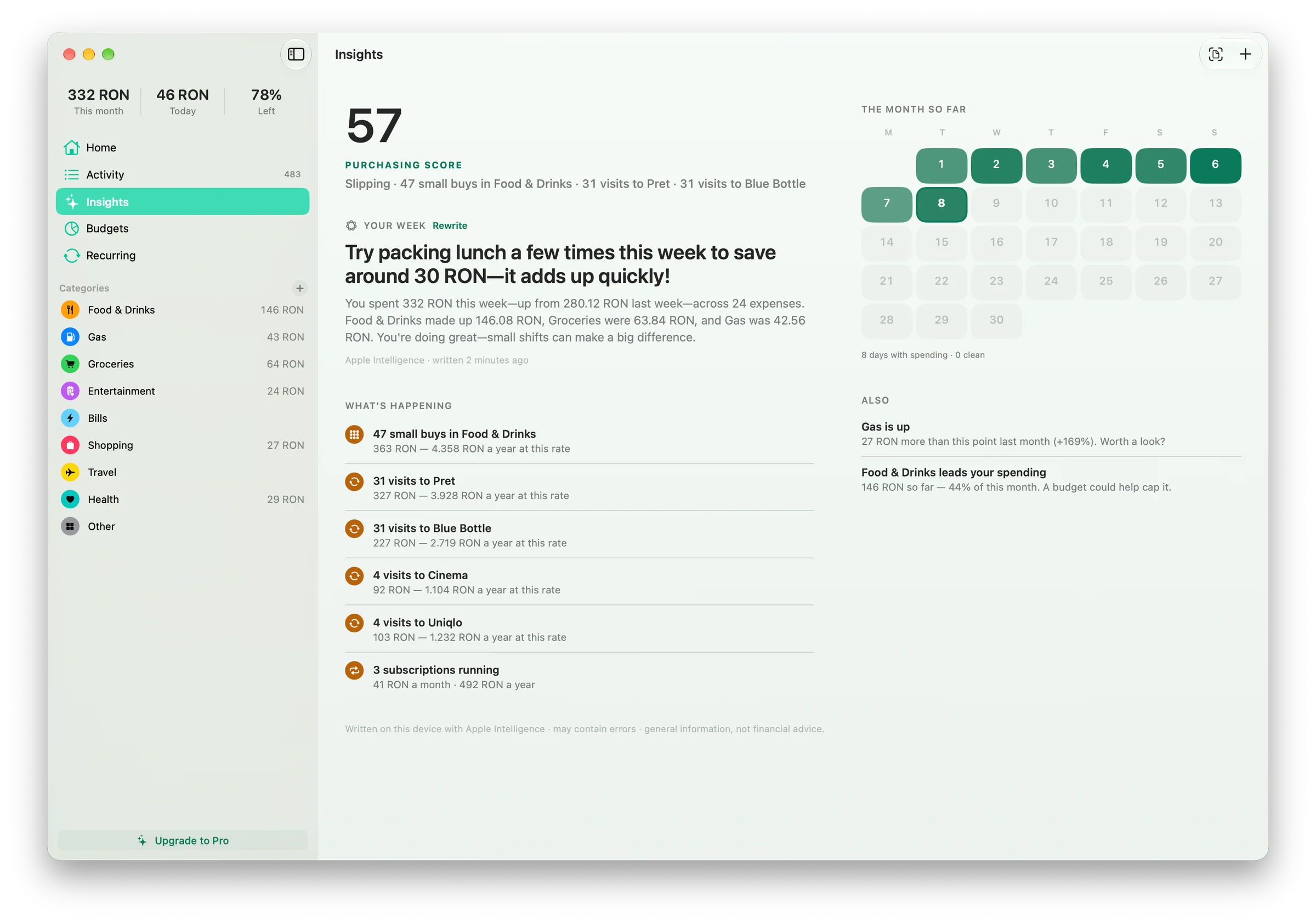
✓Read insights about category spikes, recurring spending and no-spend streaks.
✓On compatible devices, Apple Intelligence can write a weekly recap from your spending data.
↗Actual app screenshots · interface shown in English
03 / PLAN
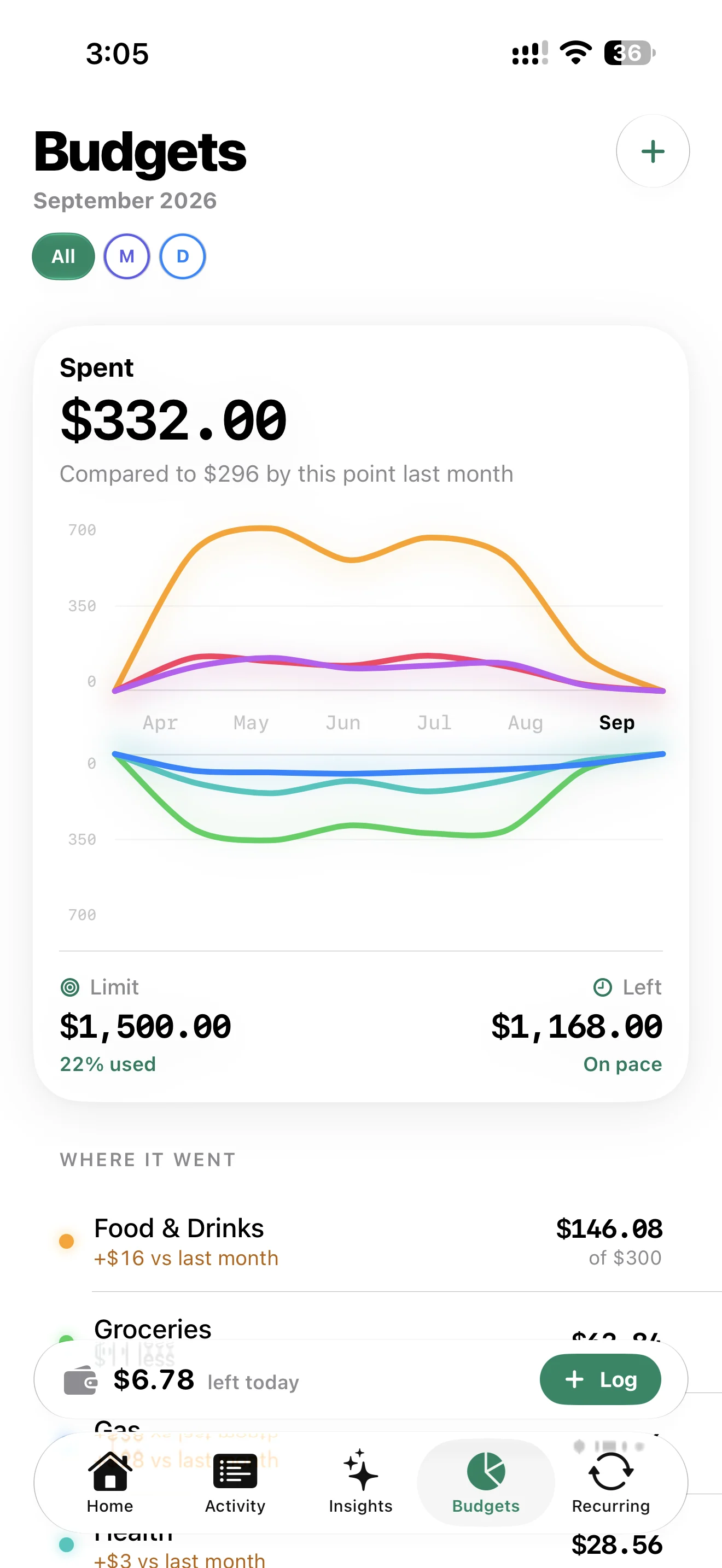
Know what is left. And how fast it is going.
Set an overall monthly budget and follow your spending against it. With Pro, add category budgets to give groceries, eating out or shopping their own limits. Spending considers the time left in the month, so you can spot a fast pace before you reach the ceiling.
✓See the amount remaining alongside your monthly and category spending.
✓Enable budget notifications for the 90% and 100% thresholds.
✓Use pace indicators to understand how today’s spending affects the rest of the month.
The details that make it useful every day.
Not every expense is a one-off, and not every budget belongs to just one person. Spending has room for the routines around your money.
↻Recurring expenses
Rent, subscriptions and the bills you already expect.
Create weekly, monthly or yearly entries. Choose automatic logging or confirmation first, and review upcoming charges together. Due entries are processed when Spending or an app action runs; they are not bank payments.
Included in Pro
◎Household Sharing
A shared view, with deliberate boundaries.
Invite a partner or family member through a private iCloud invitation. Each invitation connects one other Apple Account. Their eligible expenses appear in your view; sharing yours back is a separate choice. Budgets and receipt images stay private.
Private iCloud invitations
↗Import and export
Your ledger can move with you.
Bring an existing CSV into Spending and map its columns to your expense fields. Import is free. With Pro, export your data as CSV or JSON for your own records, another tool or a spreadsheet. You can also delete entries or erase app data from settings.
CSV import · CSV & JSON export
⌘Everyday access
A quick check without a long detour.
Use Siri, Shortcuts and the share sheet to add expenses in context. Pro includes widgets, and supported devices offer quick controls and a Live Activity for the remaining budget. Availability depends on the device and system version.
Siri · Widgets · Shortcuts
iPHONE · iPAD · MAC · APPLE WATCH
Your day changes screens. Spending comes along.
Your phone is useful at the checkout; your Mac is better for looking through a month of expenses. Spending has native layouts for both, with private iCloud sync included in the free tier whenever iCloud is available.
↗Mac · Actual app screenshots · interface shown in English↗Apple Watch
iPhone
Scan a receipt, log with the keypad and check your budget on the go. Siri and the share sheet make capturing a purchase part of what you are already doing.
iPad
Explore the same ledger with more room for charts and details. A larger layout makes it easier to review categories and compare your spending.
Mac
Review expenses in a real table, use a dedicated Settings window and press ⌘N for a new entry. The larger dashboard puts the month in perspective.
Apple Watch
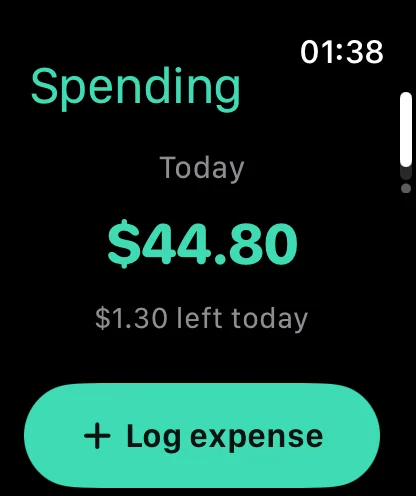
Check your monthly spending and remaining daily allowance from your wrist. A quick glance keeps the budget close while your phone stays in your pocket.
Features vary by device. Apple Intelligence features require supported hardware and languages.
SWIFTUI · APPLE INTELLIGENCE · ICLOUD
Built with Apple’s latest technologies.
Spending is a native Apple app, from the way it feels to the way it works with your devices. Modern platform technologies make everyday tasks quicker while keeping you in control of your data.
SwiftUI + Liquid Glass
Native interfaces and adaptive glass controls that feel at home on iPhone, iPad and Mac, with layouts tailored to each screen.
Apple Intelligence
Foundation Models power on-device receipt understanding and weekly recaps on compatible devices. Your financial data is not sent to our servers.
Siri + App Intents
App actions connect Spending to Siri, Shortcuts and system controls, so logging an expense can start outside the app.
CloudKit + iCloud
Your Apple Account connects your personal devices and private household invitations through Apple’s cloud infrastructure.
↗Actual app screenshots · interface shown in English
✓
Personal finance. Kept personal.
Your financial ledger is stored on your devices and can sync through your Apple Account’s private iCloud container. We do not operate servers that receive it. Receipt analysis happens on-device, and using Spending does not require a separate account or your bank credentials.
You decide what to attach to an expense and whom to invite to Household Sharing. The app has no advertising or tracking SDKs. Export and deletion controls are in Settings; iCloud availability is managed through your device’s system settings.
Try Spending with real expenses before choosing an upgrade. The free tier includes 20 expenses per month, one budget and private iCloud sync. Pro removes the logging limit and adds tools for a more detailed routine.
Choose a monthly or yearly subscription, or a one-time lifetime purchase. Current local prices and any trial offer are shown in the app before purchase. Apple handles payment, and purchases can be restored from Settings.
No. Spending does not read bank accounts or continuously import Wallet transactions. You can enter purchases, use Siri or Shortcuts, or import an image such as a receipt or payment-list screenshot.
A Wallet screenshot is analyzed as an image. You review the suggested transactions before they become expenses; Spending never asks for your online banking credentials.
How do receipt and screenshot imports work?
Photograph a receipt or share an image with Spending. The app looks for the merchant, total, date and category. A screenshot containing several payments can produce several proposed expenses.
Recognition happens on-device. Check the amounts and dates before saving, especially with blurred images or multiple totals. An image is retained only when you choose to attach it to an expense.
How does Spending use on-device AI?
Spending uses AI on your device to help turn receipt images into structured expenses and your spending history into a readable weekly recap. The analysis happens locally, without sending your financial data to our servers.
Review and correct recognized values before saving. Without Apple Intelligence, receipt scanning falls back to built-in text recognition. Apple Intelligence features require compatible hardware and supported system languages. Core expense tracking works without them.
Can I log expenses without opening Spending?
Yes. Siri and Shortcuts expose actions for logging and querying spending. You can also send a receipt image from another app using the share sheet.
Widgets and quick controls provide additional entry points on supported devices. Some of these are Pro features, and the controls available depend on your device and system version.
02Budgets, Pro & purchases
What can I do with the free version?
You can log up to 20 expenses each month, use one budget and sync your personal data privately through iCloud. Importing a CSV is also free.
Pro unlocks unlimited expense logging, additional and category budgets, recurring entries, custom categories, widgets and CSV or JSON export. The comparison above shows the main differences.
How do recurring expenses and budget alerts work?
With Pro, create weekly, monthly or yearly recurring expenses and choose automatic logging or confirmation first. Due entries are handled when the app or one of its actions runs. They do not move money or pay a bill.
Budget alerts are optional notifications at 90% and 100% of a budget. Enable notifications in the app and in system settings to receive them.
How do I cancel Pro or restore a purchase?
Manage an auto-renewing subscription through your Apple Account’s subscriptions settings. A lifetime purchase is a separate one-time option. Apple shows the applicable price and billing terms before purchase.
To restore, open Spending → Settings → Restore purchases with the Apple Account used for the original purchase. Expiring Pro does not delete your existing data or disable private iCloud sync.
03Data, devices & sharing
Where are my data stored, and can I use the app offline?
Your ledger is stored on your device, so you can record expenses without an internet connection. When iCloud is available, Apple CloudKit can sync your personal data across devices using your Apple Account.
Sync and Household Sharing need connectivity and may not update instantly. We do not hold a server copy of your ledger and cannot recover it on your behalf.
What exactly is shared with my household?
Each private iCloud invitation connects one other Apple Account. The invited person shares eligible expenses with the inviter. The inviter’s own expenses are not sent back unless they enable that option for the person.
Shared records include expense details such as amount, merchant, date and notes. Budgets, receipt images and custom categories are not shared. Previously imported history may remain after disconnecting until it is deleted.
Can I export, move or delete my data?
Open Settings → Data. Pro exports your ledger as CSV or JSON; CSV import with column mapping is free. You can delete individual expenses or erase app data from settings.
Manage iCloud storage through your Apple Account’s system settings. Because we do not hold your financial data, export, correction and deletion happen on your devices and in iCloud.
Which devices and languages are supported?
Spending has native experiences for iPhone, iPad, Mac and Apple Watch. The app and website are available in English, Romanian, German, French and Spanish.
Not every feature appears on every device. Receipt capture, widgets and Apple Intelligence depend on hardware, system version and Apple’s language support. Check the app listing for installation requirements when available.
Do I need an account, and how can I get help?
There is no separate Spending sign-up. iCloud and purchases use the Apple Account already configured on your device. The app contains no advertising or tracking SDKs.
For help, use the contact page and include your device, OS and app version. Support is available in English and Romanian. Please do not send receipts, account numbers or sensitive financial details.
Make room for what matters.
A calmer relationship with everyday spending starts with a little clarity.
 Spending